Manipulating Cell Data
1. Adding Data
-
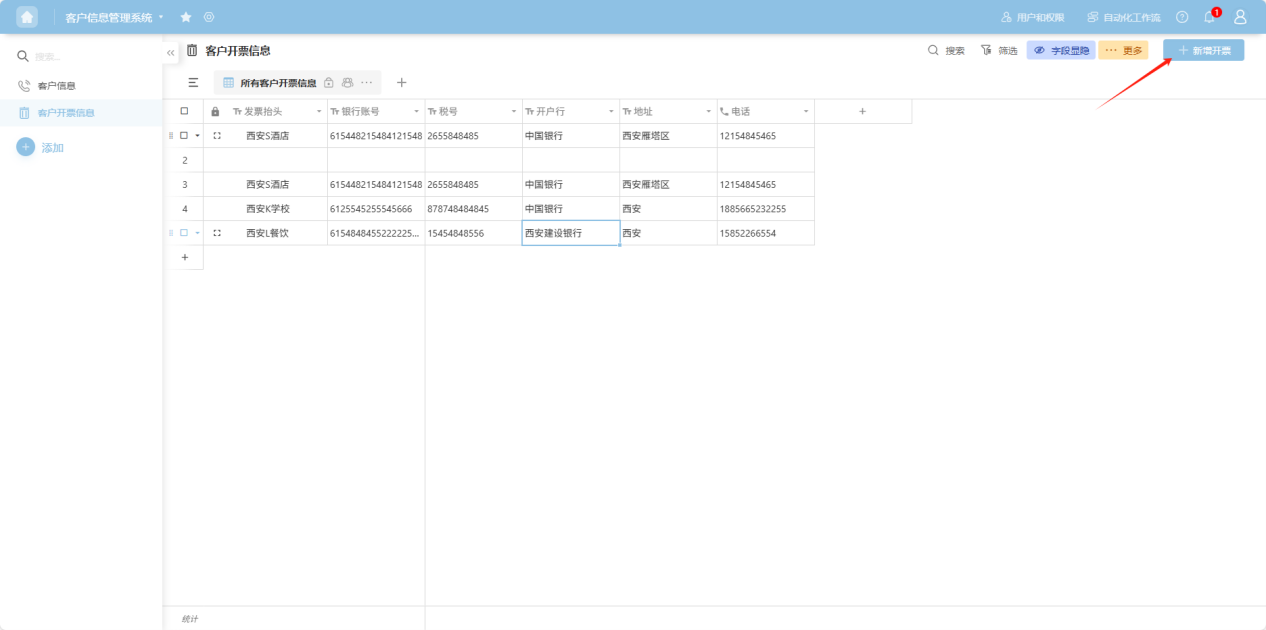
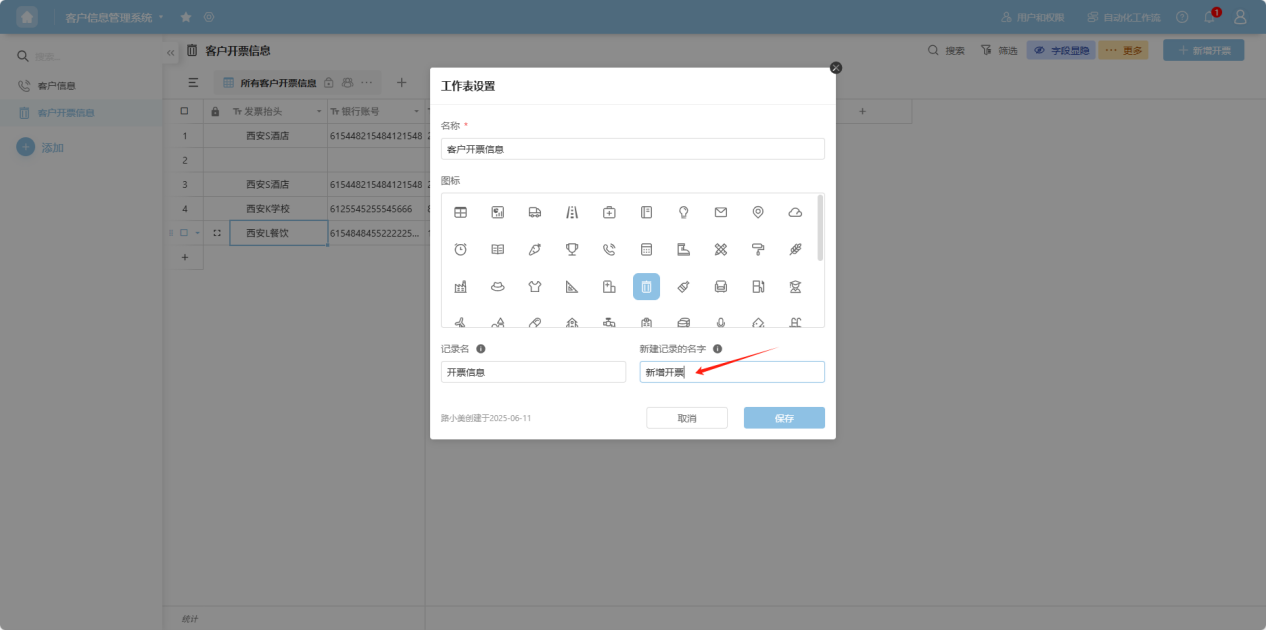
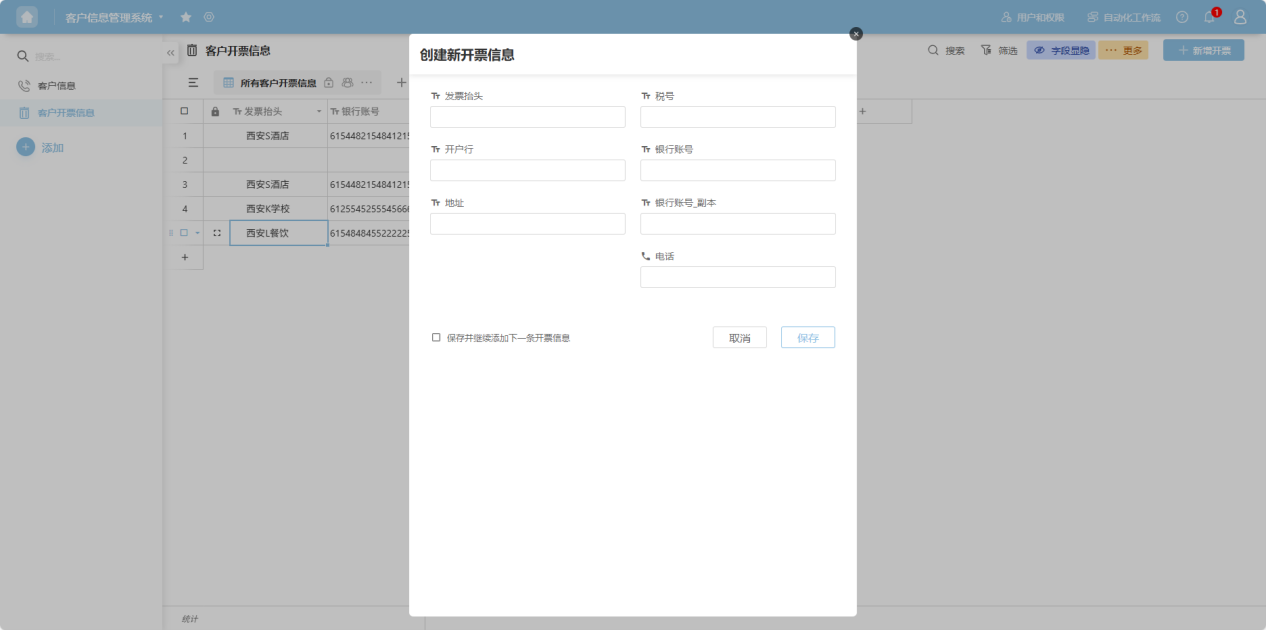
Using the Add Button: Click the "Add" button in the upper-right corner of the worksheet (the button text corresponds to the "New Record Name" entered during table creation, which can be modified in the worksheet settings). Enter the new data step-by-step in the pop-up form.
-
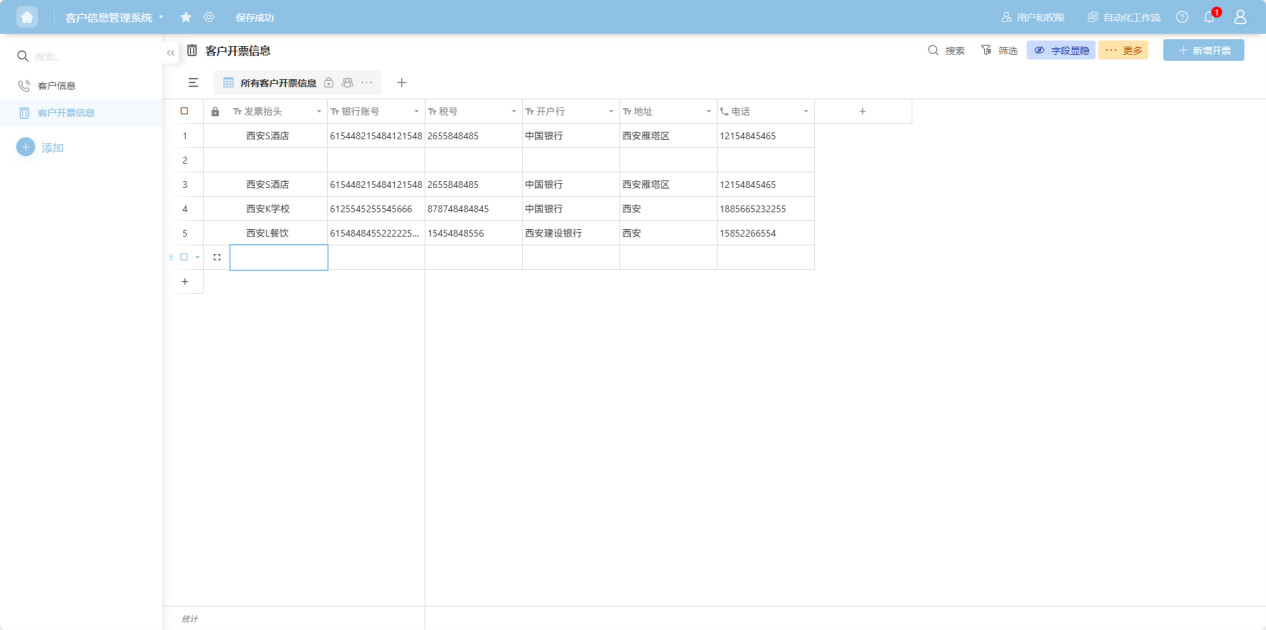
Adding Directly in the Table: Insert a row directly in the table area, double-click the corresponding field, and enter the new data.
2. Searching for Data
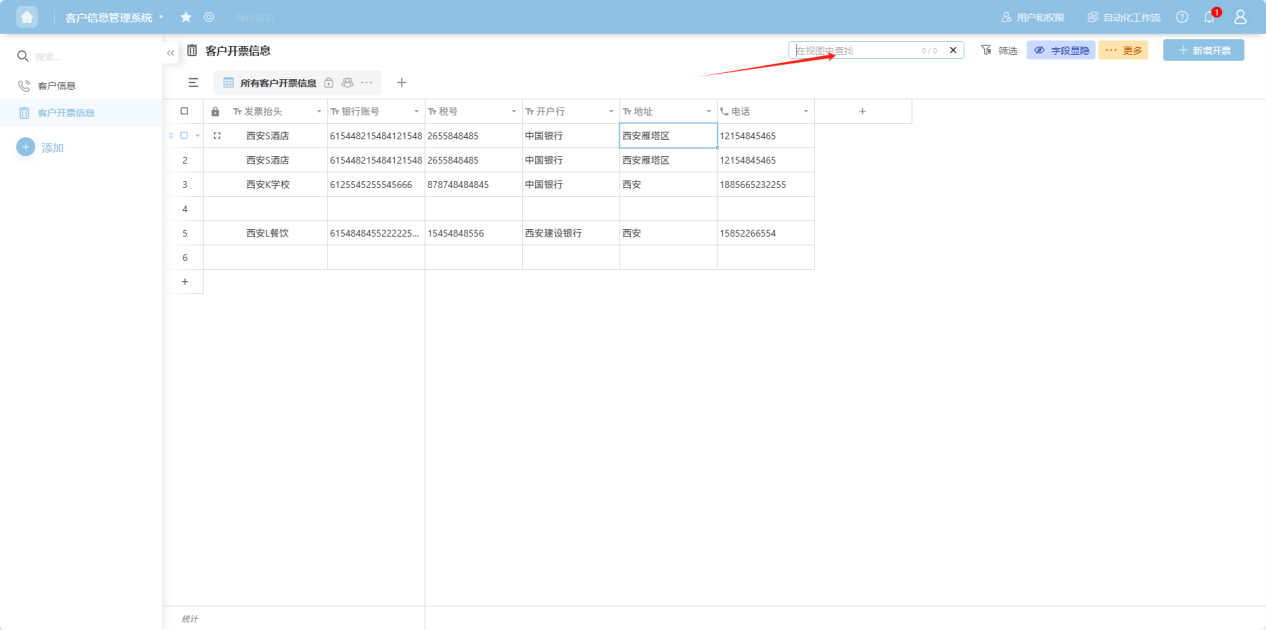
Click the search box in the upper-right corner of the table, enter the content you want to find, and perform a data search.
3. Editing Data
-
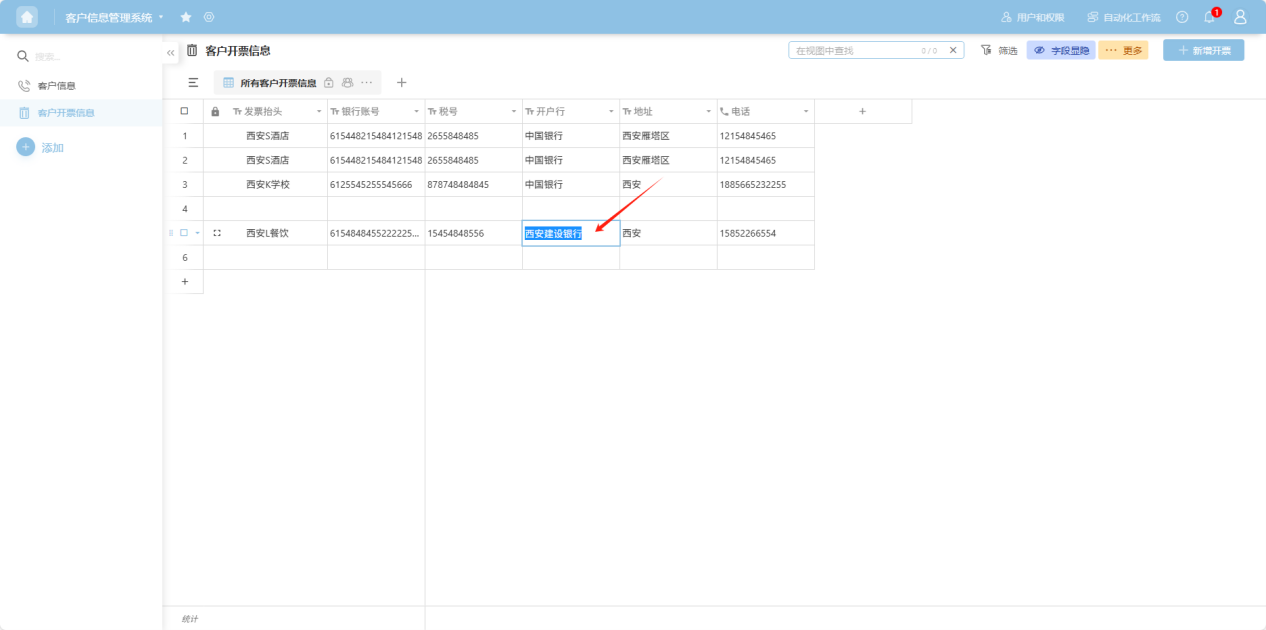
Directly Editing a Cell: Double-click the cell you want to edit to activate edit mode, then modify the content.
-
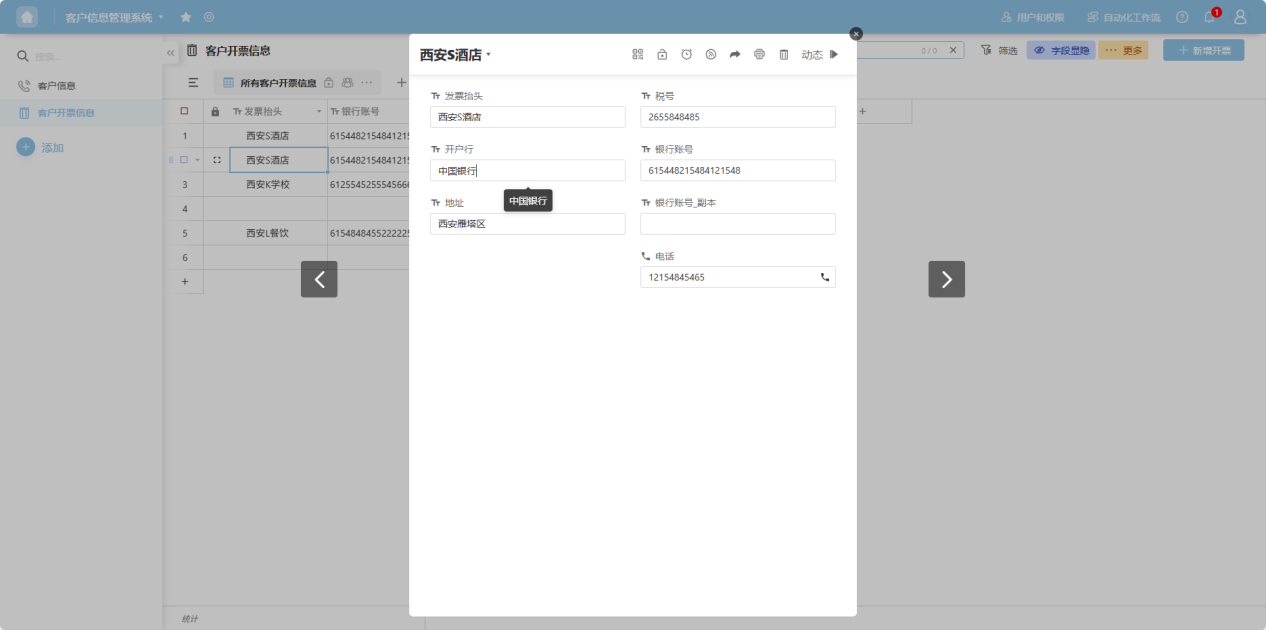
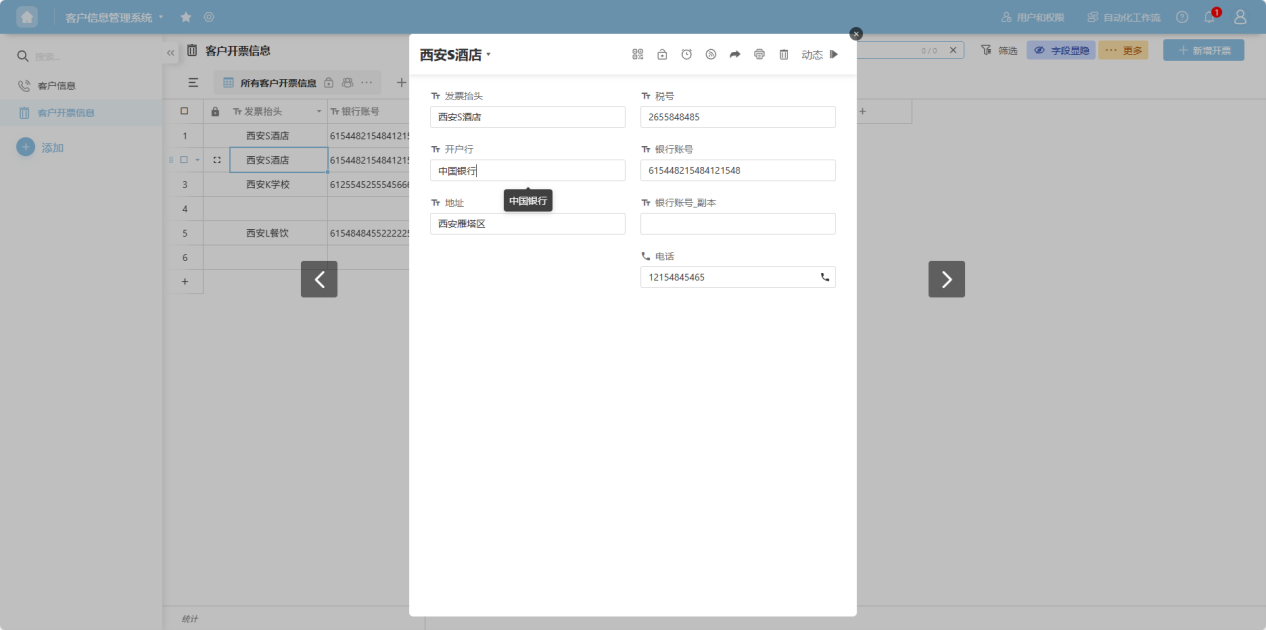
Editing via Row Details: Open the detailed information page for the row data and edit the corresponding field content.
4. Deleting Data
- Deleting Cell Content: Select the cell(s) you want to clear and press the "Delete" or "Backspace" key on your keyboard to empty the content.
Note: Operations available in the right-click context menu apply to the entire row. Please use the delete option carefully to avoid accidentally removing an entire row of data.